
Create a List of Keyboard Shortcuts in Microsoft Word
Becoming proficient in keyboard shortcuts in Microsoft Word can significantly increase your efficiency and streamline your writing process. Instead of spending time clicking through various menus and ribbons, you can execute tasks swiftly using just a combination of keystrokes. below discribed how to create Create a List of Keyboard Shortcuts in Microsoft Word step by step.
This not only saves time but also allows you to maintain your focus on your work. To make the most of this feature, consider creating a personalized list of shortcuts tailored to your specific needs and workflow. This tailored approach will help you navigate the program more effortlessly and enhance your overall productivity.
Create a List of Keyboard Shortcuts in Microsoft Word Steps
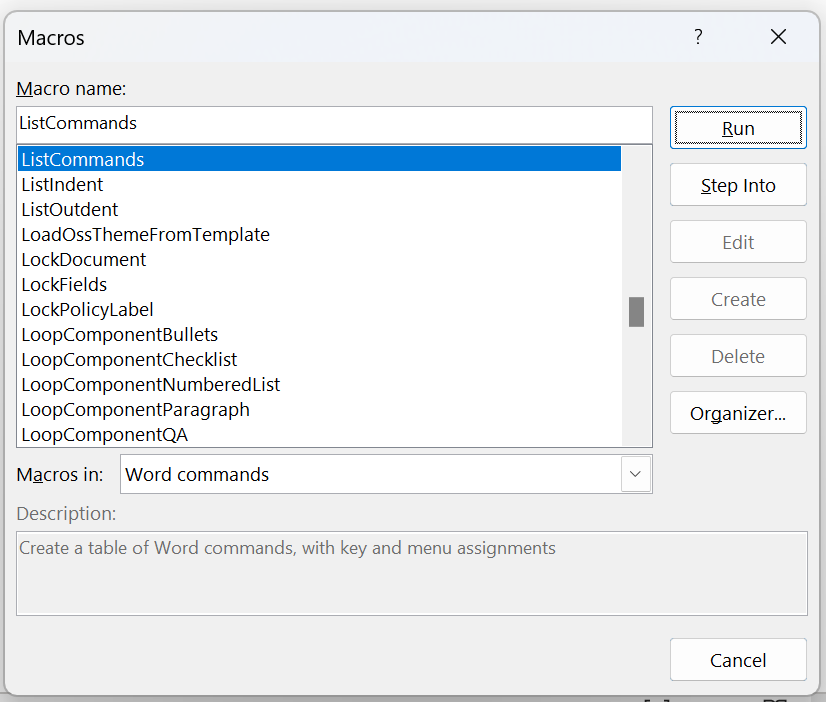
1. Press ALT + F8 on your keyboard
2. Select the “Word commands” under Macros in
3. Choose “ListCommands” from the dropdown list of macros
4. Click on “Run Macro.”
5. Select the “Current keyboard settings”
6. Click “OK.”
Click here to Download Free Softeare

Users are drawn to its diverse features that enhance the overall experience.